How to access your mailbox.
What you will need:
1. Permission to do so! If you don't have a Webmail mailbox then you should not be accessing it. Please contact Supake Ltd or speak with your supervisor for further information and assistance.
2. Your Current User Email address and associated Password.
3. This web link: login.livemail.co.uk
What to do:
1. Click the link in item 3 and this should open a NEW web page. If it does not, you may have popups blocked so select and copy the text and paste it into a new browser window the press enter or you can type this address into your chosen browser, ie Chrome, IE, Edge, Firefox, Safari, etc.
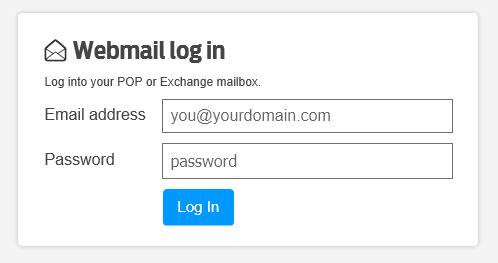
You should then see this page similar to this one:
When you get to this page, enter your FULL email address in the 'Email address' field and your current password in the 'Password' field. Now click the 'Log In' button. If you are prompted (with an error message) to log in again, please do this. This is the system automatically switching to an alternative login page to suit the mailbox type for you.
If you have forgotten your password, you will need to contact your supervisor or alternative, Supake Ltd on 01246 826557.
Alternatively, you can also email info@supake.co.uk and request password reset. Please note this reset may take up to 48 hours to process so please keep a careful and secure note of your details!
NOTE: You can access your email wherever you have access to a computer or tablet, etc, if you have; a) the web address, b) your email address and c) your password so please take care when using a device you don't know, eg in a hotel, on holiday or when using free WIFI services as these can retain or obtain your personal information and password details.
If your internet service is limited (speed or capacity) you can also choose to use the 'light version' which when selected, restricts some features and graphics to help with speed and can be used without any issues to the email functionality.
If you get a security warning or message about accessing the site (when using Google Chrome, Android or other mobile devices) you can ignore this message (as the site is Secure) and proceed. Once you have logged in, you should see that this warning has gone. If it has not, please call Paul at Supake Ltd (01246 826557) with your details.
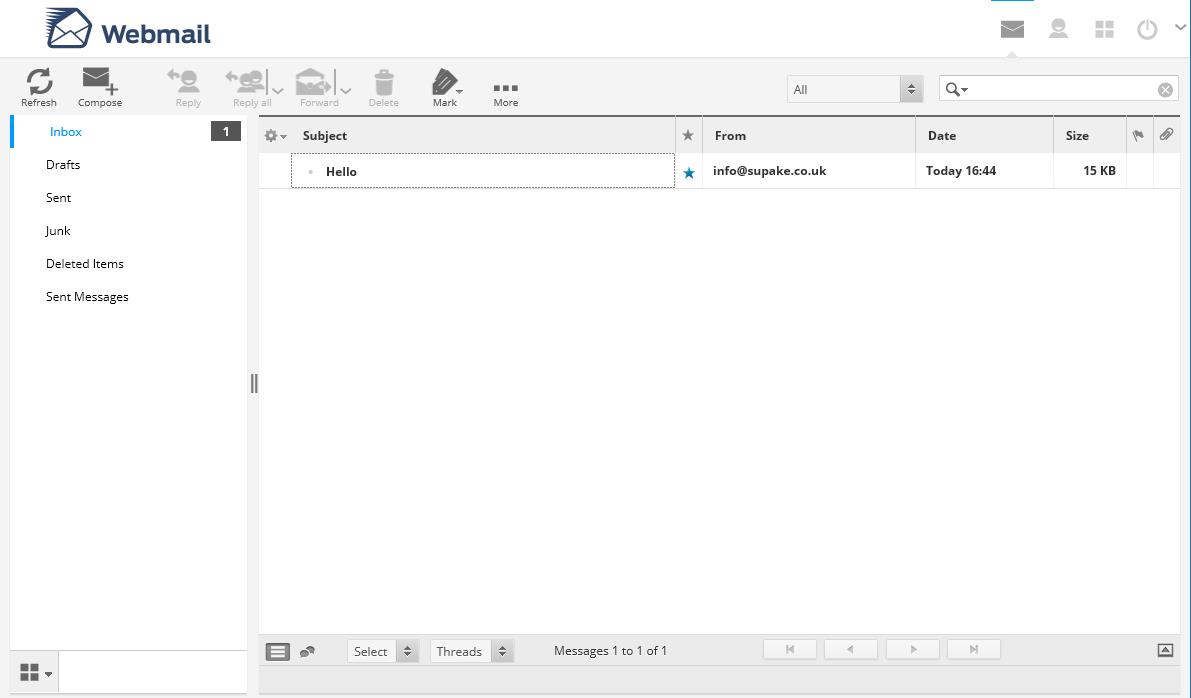
Once you have successfully logged in, you should see the following window. Note that yours may be different depending on the type of email account you have and could have some more email in it or you may have customised the look of the page in the settings options:
As you can see, there is only one email in this mailbox. When you get several messages, simply double-click the one you want to read. You can also perform actions such as moving and deleting it while selected. You may also select the message to perform similar actions such as 'reply' to the email, etc, using the menu buttons above.
You can now customise your mailbox by clicking on the 'Settings' button which looks like 4 squares in a block in the top right hand corner. You can change a number of features in this section such as viewing a mail 'Preview' or adding a Signature (see the 'Identities' section of settings)
These mailboxes are a 'Lite' mailbox and so limited by space however, they can contain hundreds of emails and so it is important that old(er) or unwanted emails are deleted so you don't run out of space. Note that deleting an email will not remove it from your mailbox (it simply moves it to the deleted Items' folder) so it is important that you periodically empty the Deleted Items to permanently remove them and free up space. If you would prefer the 'system' to do this for you and this is a recommended option, please enable this feature in the Setting section under 'Server Settings' by selecting the check box; [X] Clear Trash on Logout'. Once selected, when you sign out of your Web Mail, this folder is emptied for you. There are a number of other options there too such as putting Junk mail directly in the Deleted items, etc.
Finally, once you have seen your email, if you are working on a shared PC or no longer need to access it, please remember to Sign Out! This is particularly important if you are accessing your email from a hotel, internet cafe, etc, to protect your email and information. While the WebMail system is secure (using https) if you do use internet cafe's, public or shared WIFI services, it is strongly recommended that you use a VPN Service such as PIA VPN, TunnelBear or VPN Unlimited, etc, to protect any data that is transmitted over shared connections.
It is also possible to explore and change a number of other options in your Mailbox Control Panel, specifically (and it is recommended that you do this often) to change your mailbox password and for the more tech savvy, there is also a number of other options available as shown below. To access the Mailbox Control Panel, you need to open a new web page and visit http://mcp.YOURDOMAINNAME/Auth/LoginHere substituting your own domain name.
An overview of the Mailbox Control Panel options available are:
Here you can change a number of items, specifically your mailbox Password. This is something that you should do immediately when you first access your mailbox and on a regular basis, eg every 90 days to protect your mailbox.
You can find much information about your mailbox here, such as Server Settings (if you want to use such as Outlook for your email) the Space you have used and have available, options for 'Forwarding' you email to another chosen mailbox (note that your replies will then be sent from that mailbox) and a Setup Guide (on the 'Software Settings' panel) and an Automatic Replies option, ie automatic 'Out of Office' or Holiday responses.
Finally, when you have finished making any changes, remember to 'Logout' of the Control Panel. Also, be aware that logging into the Control Panel on an unsecured internet connection or a PC that you do not know, eg an internet cafe or hotel, is not recommended.
If you have any difficulty in using your mailbox, please send an email to your mail Admin and specify your mailbox address, password and an explanation of the problem. You can also call Supake between 10AM and 5:00PM Monday to Friday for assistance.
Please note that we do not have access to, not hold any password information. We can however, reset it to a temporary default password to enable you to log into the Admin panel and update the password as appropriate.




Mailboxes on our Standard Mail Server